
 View Products


Key takeaways
- You can search for an email address by name using lookup tools, search engines, social profiles, public websites, or mutual connections.
- Adding a known employer or location can help narrow a name-based search.
- An email permutator generates possible address formats; its results are guesses until checked.
- A contact form or a respectful direct message can be an alternative to finding a person’s email address.
- Review possible matches and verify an address before using it, and respect the person’s privacy preferences.
Last updated: September 3, 2026
Ever needed to reach someone but all you had was a name? Whether you’re recruiting a nurse practitioner, following up with a physician after a conference, or trying to reconnect with a former colleague, tracking down one email address can eat up an afternoon. So how do you actually find it?
Swordfish AI’s Reverse Search feature is the most effective way to find and verify email addresses from just a name and company or location. Other methods include search engines, blogs, social media platforms, email permutators, and domain WHOIS searches.
You can look for an email address by name using a lookup tool, search engines, social profiles, public websites, or a mutual connection. Below are 16 methods, with notes on where each may help and where it can fall short.
How to Find Email Addresses by Name: 16 Proven Methods
Finding an email address by name is often the first step toward direct, personalized outreach, whether that’s a sales conversation, a recruiting message to a healthcare provider, or a simple reconnection.
The methods below range from dedicated lookup tools to public searches and direct requests. The best starting point depends on what information you already have and whether the person has shared contact details publicly.
- Using Swordfish AI
- Utilize Google and Search Operators
- Gmail Email Search
- Explore Social Media Networks
- Utilize an Email Permutator
- Conduct a Domain Whois Search
- Subscribe to Their Mailing List
- Utilize Their Website’s Contact Form
- Using Personal Connections
- Check out DuckDuckGo with “@domainname.com”
- Export Your LinkedIn Connections
- Take an Educated Guess
- Google Name + “Email” / Google Name + Place of Work
- Master Google’s Site Search Operator
- Try “Kitchen Sink” Queries
- Explore Personal Blogs
Now let’s walk through each one in detail.
1. Using Swordfish AI: The Best Tool to Find Email by Name
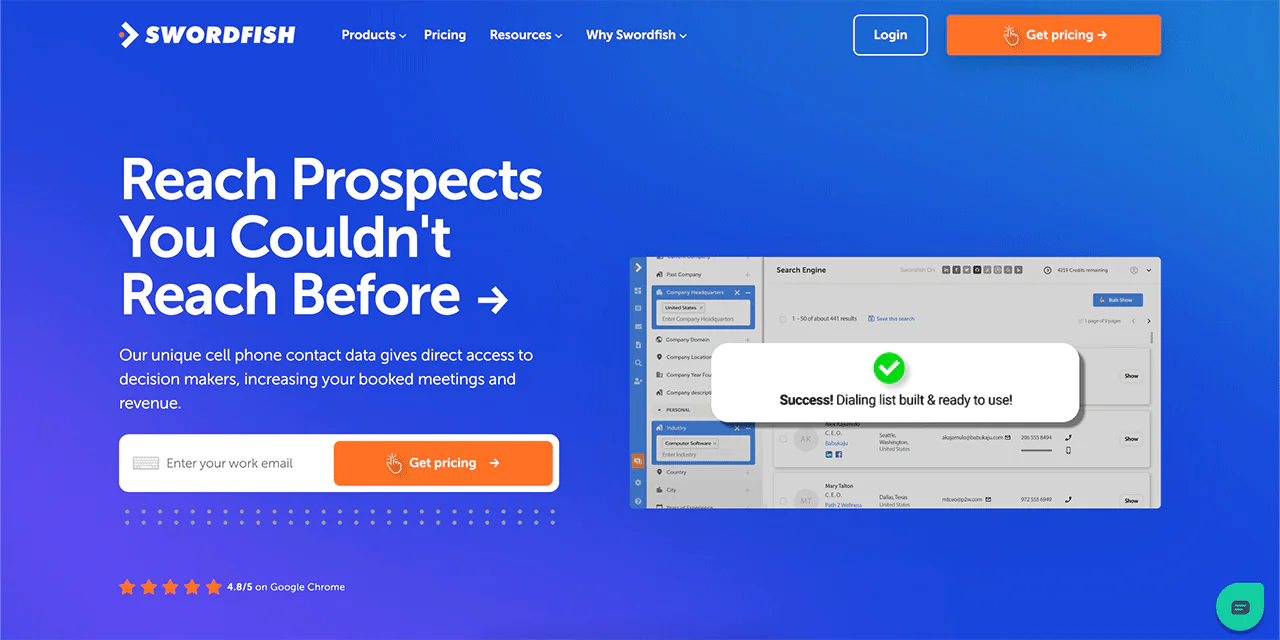
Swordfish AI stands out because it verifies contact details rather than just guessing at them, and it also surfaces cell phone numbers alongside email addresses. That combination matters if your outreach depends on phone calls as much as email, which is common in healthcare recruiting and sales where inboxes get ignored but a call sometimes gets through.
The platform draws on a large database of consumer and professional profiles, and it offers a Chrome Extension that pulls contact details directly from pages like LinkedIn and Facebook while you browse.
For teams that need to find many emails and phone numbers at once rather than one at a time, Swordfish AI is built to handle that volume without forcing you into a manual, name-by-name search.
Swordfish AI also states that it follows privacy frameworks including GDPR and CCPA, which matters when you’re handling personal contact data at any scale, and especially in regulated fields like healthcare.
How to Find Email Addresses by Name with Swordfish AI
Swordfish AI’s Reverse Search feature is built to find business and personal email addresses using only a name plus a company or location. Here’s how it works step by step.
Step 1: Visit the Reverse Search Page
Go to the Swordfish AI website, find the “Products” section near the logo, and click on it. From the options that appear, choose “Reverse Search.”
Step 2: Select Your Search Criteria
On the Reverse Search page, you’ll see options to search by “Name and Company” or “Name and Location.” Pick whichever matches what you already know. If you know where the person works, “Name and Company” tends to narrow results faster. Otherwise, “Name and Location” is a solid fallback.
Step 3: Fill in the Details
You’ll need the person’s first and last name. Adding a middle name, if you have it, can sharpen the search further. Then add either the company name or location, depending on which option you picked.
Step 4: Sign Up or Log In
You’ll need a Swordfish AI account, new or existing, to run the search.
Step 5: Start Your Search
With the details entered, run the search. Swordfish AI checks its database for matches against the details you provided.
Step 6: Check Out the Results
Once the search finishes, review the possible matches and check that the details fit the person you’re looking for. Swordfish AI states that it verifies email addresses, but confirm the result before using it.
Other Features of Swordfish AI
Here’s a look at the other tools in the platform worth knowing about.
-
Prospector
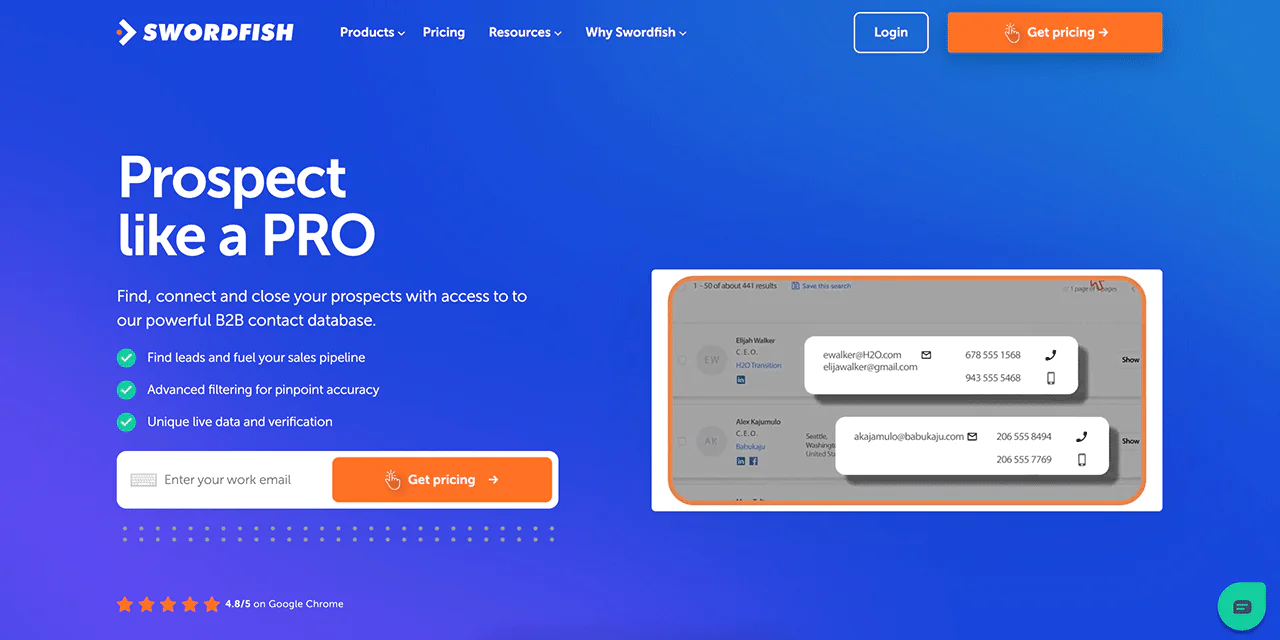
The Prospector feature is built for lead generation. It helps you identify potential leads and pull their email addresses, which speeds up building a contact list from scratch.
-
File Upload
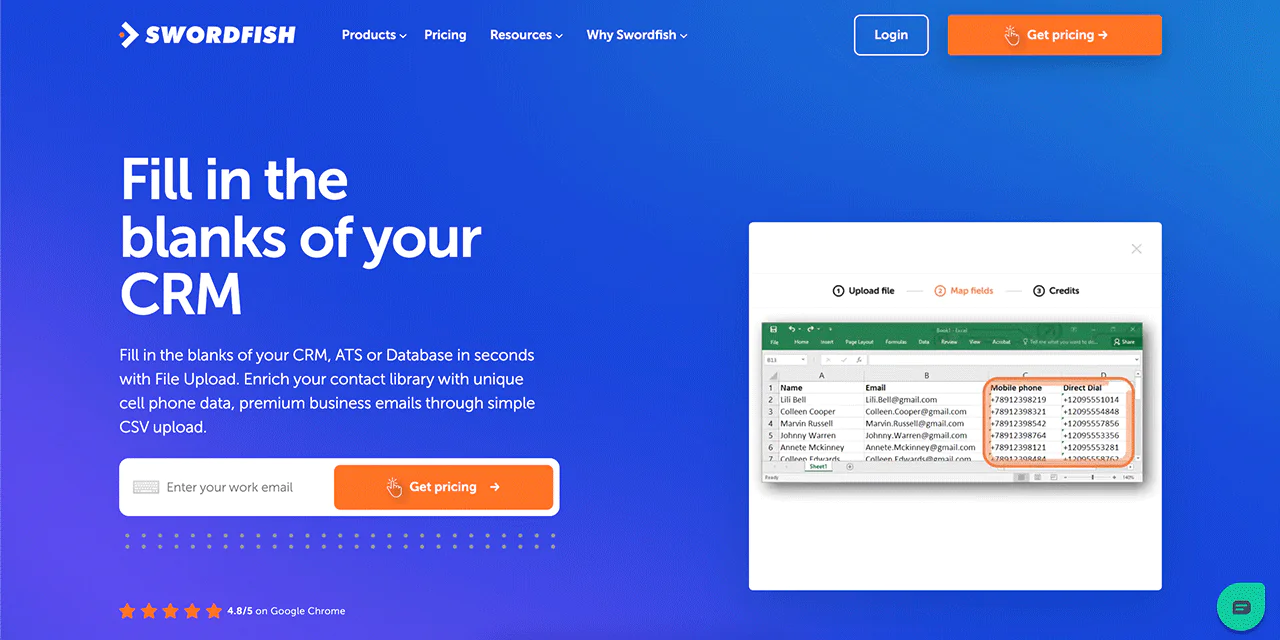
This feature lets you upload files directly into the Swordfish AI system once you’ve found contact details, which makes it easier to manage large lists without manual entry.
-
API
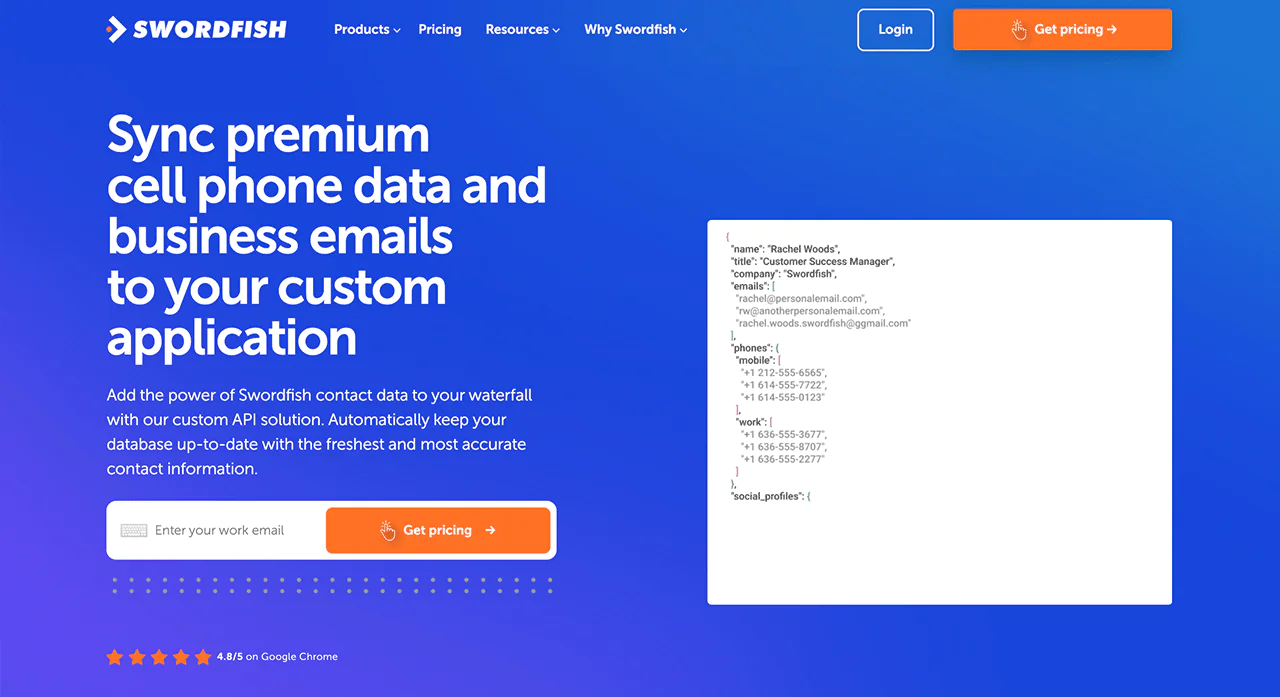
Swordfish AI offers an API for integrating contact lookups into other systems, which is useful if you want automated workflows rather than manual lookups.
-
Bombora
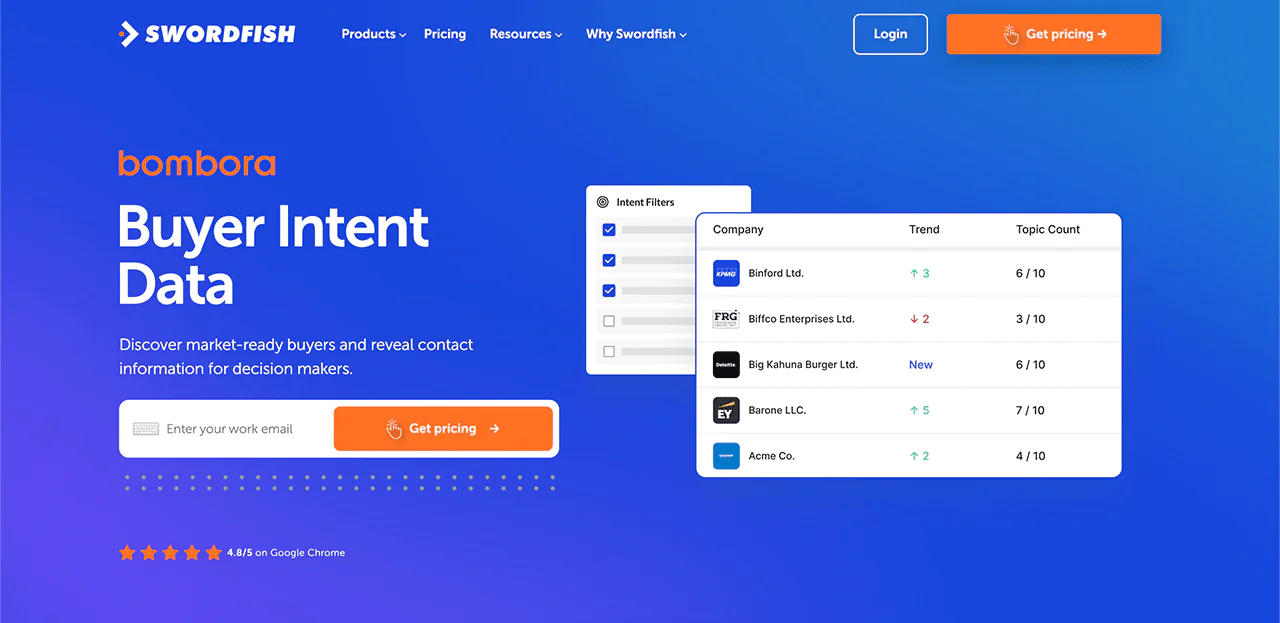
The Bombora integration adds buyer intent data on top of contact matching, helping you prioritize which names are worth reaching out to first.
-
Chrome Extension
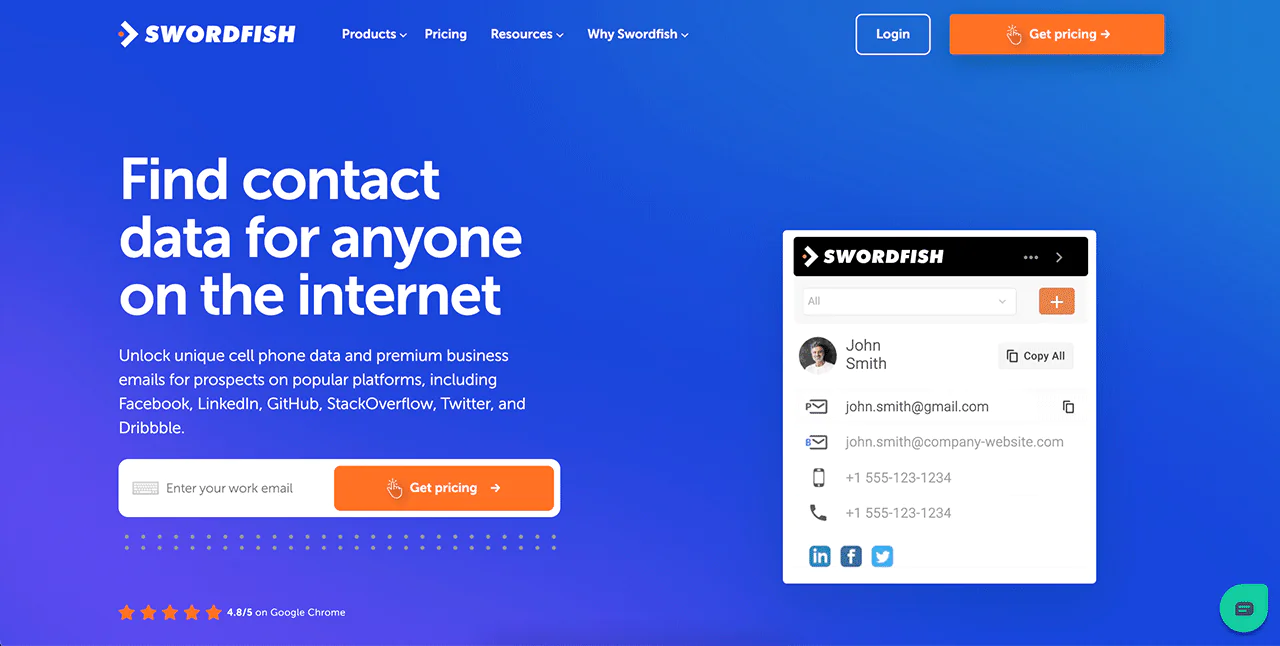
Swordfish AI’s Chrome Extension integrates with your browser so you can pull contact details without leaving the page you’re on.
Best Use Cases of Swordfish AI
Here’s how the platform tends to get used in practice.
- Finding Emails on Social Media: Useful for pulling contact details from platforms like Facebook, LinkedIn, and GitHub when you’re trying to build new relationships.
- Rapid Contact List Expansion: If your list has gaps in emails and phone numbers, this fills them faster than manual research.
- Accuracy in Data Collection: Verification against multiple sources matters more than raw volume when you’re trying to avoid bounced emails or wrong numbers.
- Compliance and Data Security: Adherence to privacy frameworks like GDPR and CCPA matters for any business handling personal contact data at scale.
- Access to Updated Contacts: Contact data goes stale quickly, especially in healthcare where providers change practices often, so recency matters as much as accuracy.
- Enhanced Recruitment Processes: Recruiters can reach passive candidates, including clinicians who aren’t actively browsing job boards, without relying on a single channel.
- Boosting Sales and Growth: Accurate contact details reduce wasted outreach and help sales teams focus effort on conversations that are more likely to happen.
Pricing
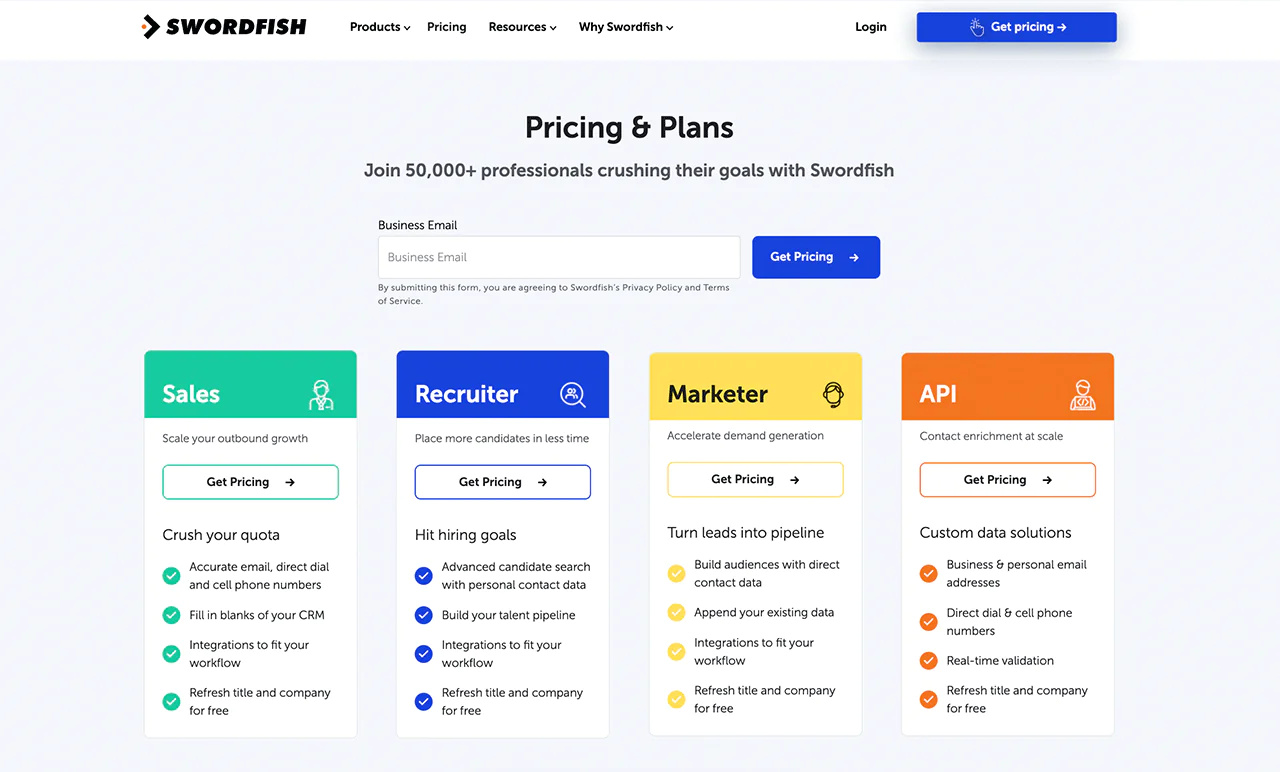
Swordfish AI offers pricing plans built around specific use cases like sales, recruitment, marketing, and API access, each aimed at giving you verified email, direct dial, and cell phone contacts.
 Try Swordfish Ai
2. Utilize Google and Search Operators
Looking for a way to find email addresses by name without paying for a tool? Google search operators are a reasonable starting point, alongside public sources like National Archives records. Here’s how to find free emails this way.
- Go to Google’s homepage.
- Type the person’s full name followed by “email address.”
- For example, “John Doe email address.”
- If that doesn’t work, add more detail: company name, job title, or location.
- For instance, “John Doe ABC Company email address.”
Google lets you refine results with search operators. Wrapping a phrase in quotes, for example, tells it to look for that exact phrase rather than a loose match.
This method may come up empty because many people, including providers, keep their email addresses off public pages. Search results may offer clues, but they do not guarantee that you’ll find a current address.
3. Gmail Email Search
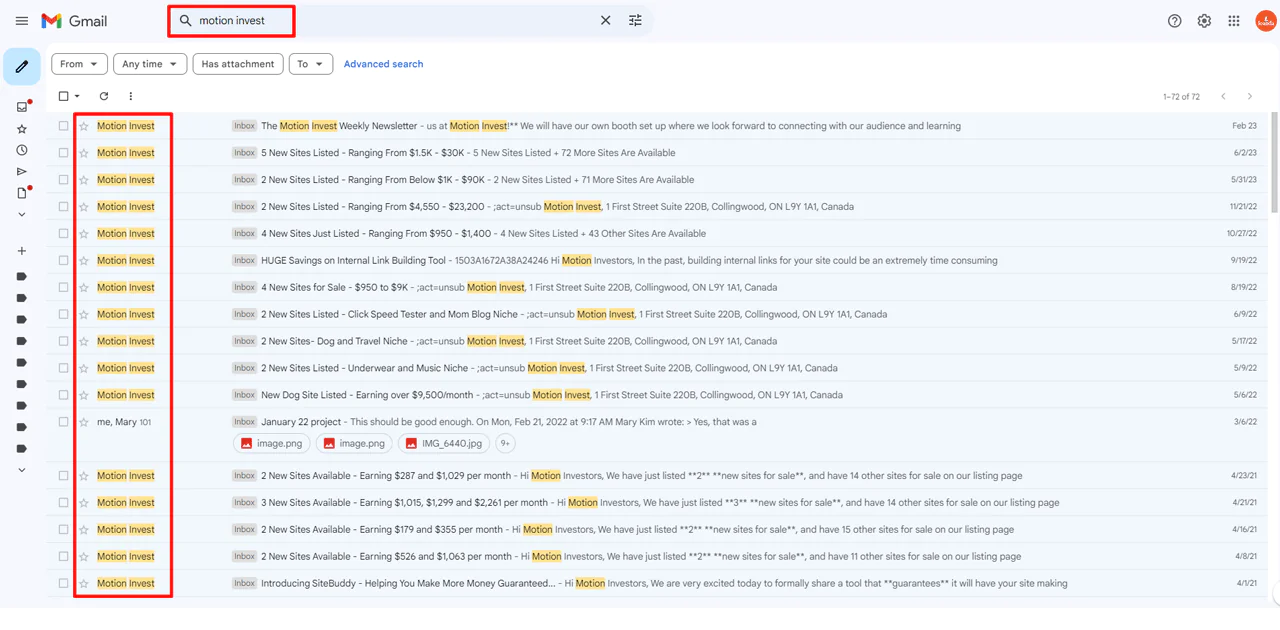
If the email you’re after already exists somewhere in your own inbox, Gmail’s built-in search can surface it quickly.
Here’s how to use it:
- Start at the Search Bar: It sits at the top of your inbox on desktop and mobile alike.
- Enter Your Search Term: Type the name or keyword. Gmail will suggest matches as you type.
- Pick from the Suggestions: Click a suggestion or press Enter for the full result list.
- Use Advanced Search for More Specificity (Web Only): On desktop, the advanced search panel lets you filter by sender, date, size, and attachments.
- Filter with Search Chips: Gmail shows clickable filter chips below the search bar that let you narrow by sender, recipient, read status, and more without opening the advanced panel.
- Apply Search Filters on Android: Workspace and G Suite Basic or Business accounts on Android have access to additional filter options; this isn’t available on iOS.
Keep in mind this only works for addresses already tied to your contacts or prior email threads. It won’t find email addresses outside your own Gmail history.
4. Explore Social Media Networks
Social platforms hold more contact detail than people assume, though the odds vary a lot by platform.
LinkedIn is often the strongest social option for professional contacts, though not every user shares an email, and many restrict who can message them.
- Visit the Profile
Start on the profile page of the person you’re trying to reach.
- Contact Info Section
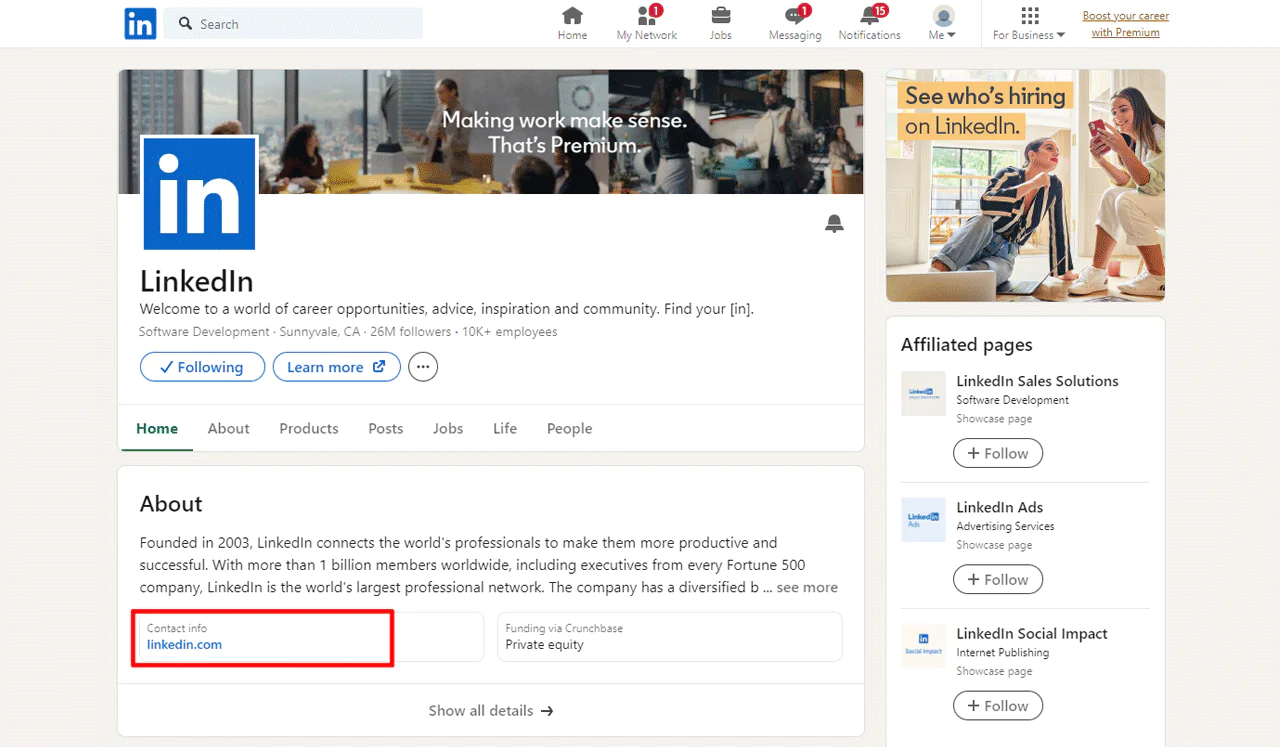
Many users list their contact information in the ‘Contact Info’ section, sometimes including an email.
- Direct Messaging
You can also message the person directly, introduce yourself, and explain why you’re reaching out. Some will share an email in response.
- LinkedIn Premium
A Premium account gives you InMail access to message people outside your network, which is another route to requesting contact details.
- LinkedIn Email Extractor Tools
Various third-party tools claim to extract contact info from LinkedIn profiles, though accuracy and terms-of-service compliance vary.
Facebook isn’t a professional network, but some profiles still list contact detail:
- About Section: Some users make their email visible here.
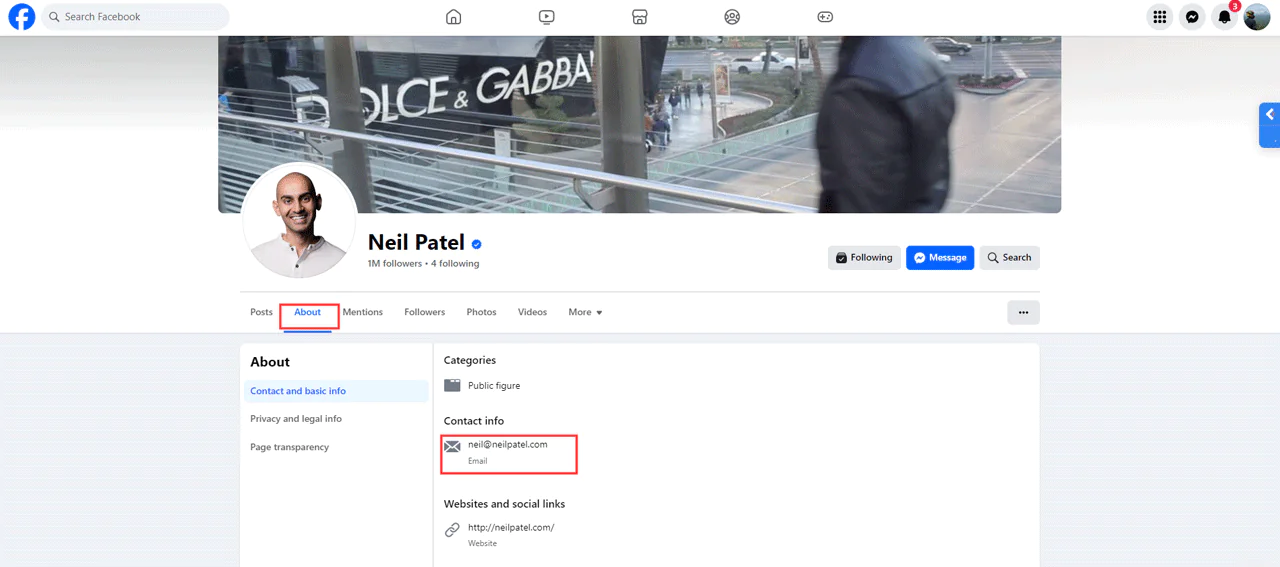
- Send a Message: As with LinkedIn, explain why you’re reaching out and be mindful of privacy.
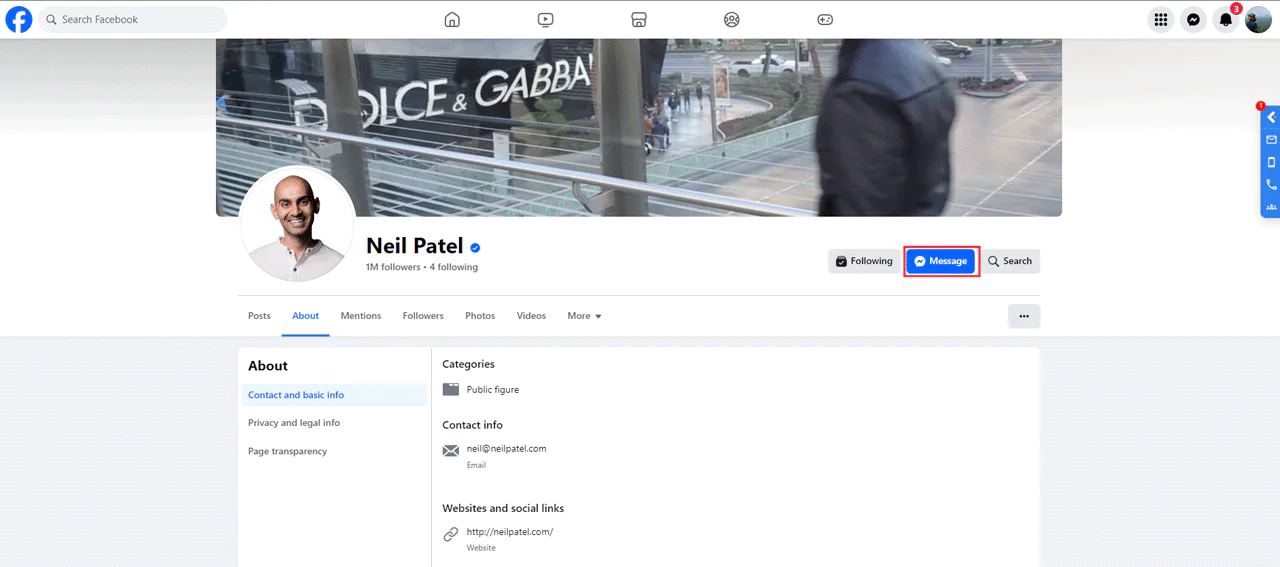
- Check for Public Posts: Some people share an email in a public post, which Facebook’s search can surface for email addresses.
Twitter’s character limit and privacy habits make this harder than other platforms, but it’s worth trying:
- Bio Section
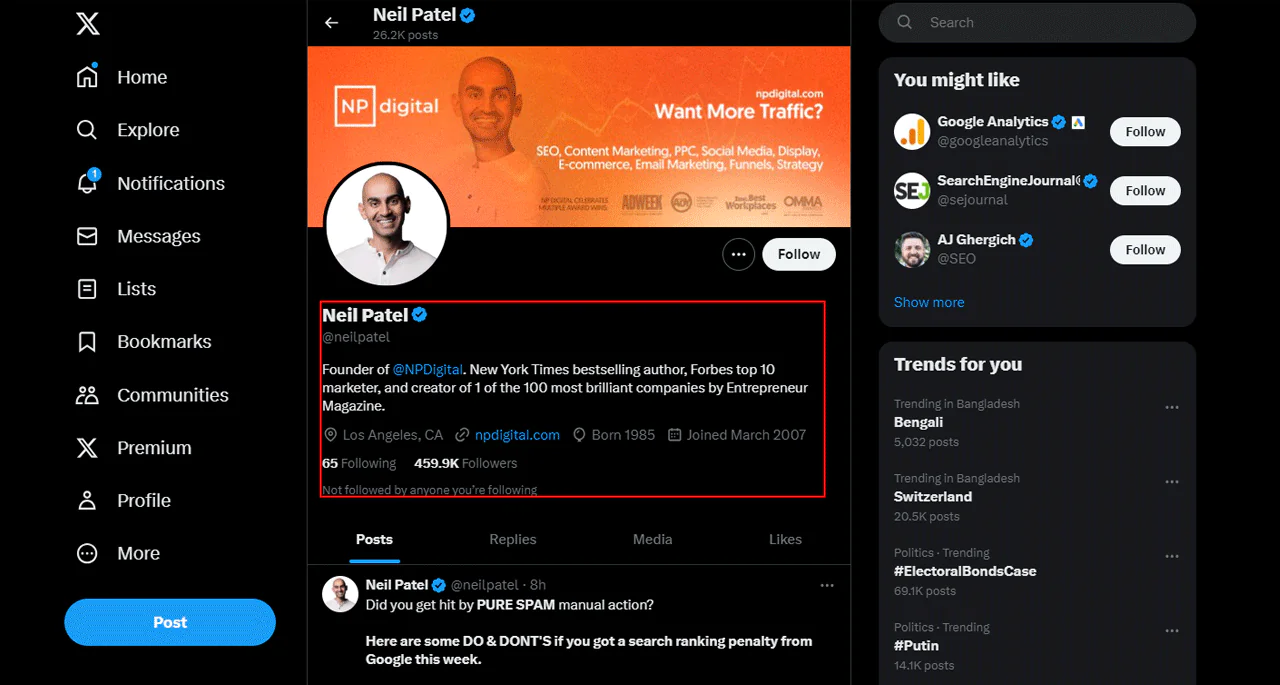
Check the bio for lines like “For business inquiries, contact me at…”
- Website Links
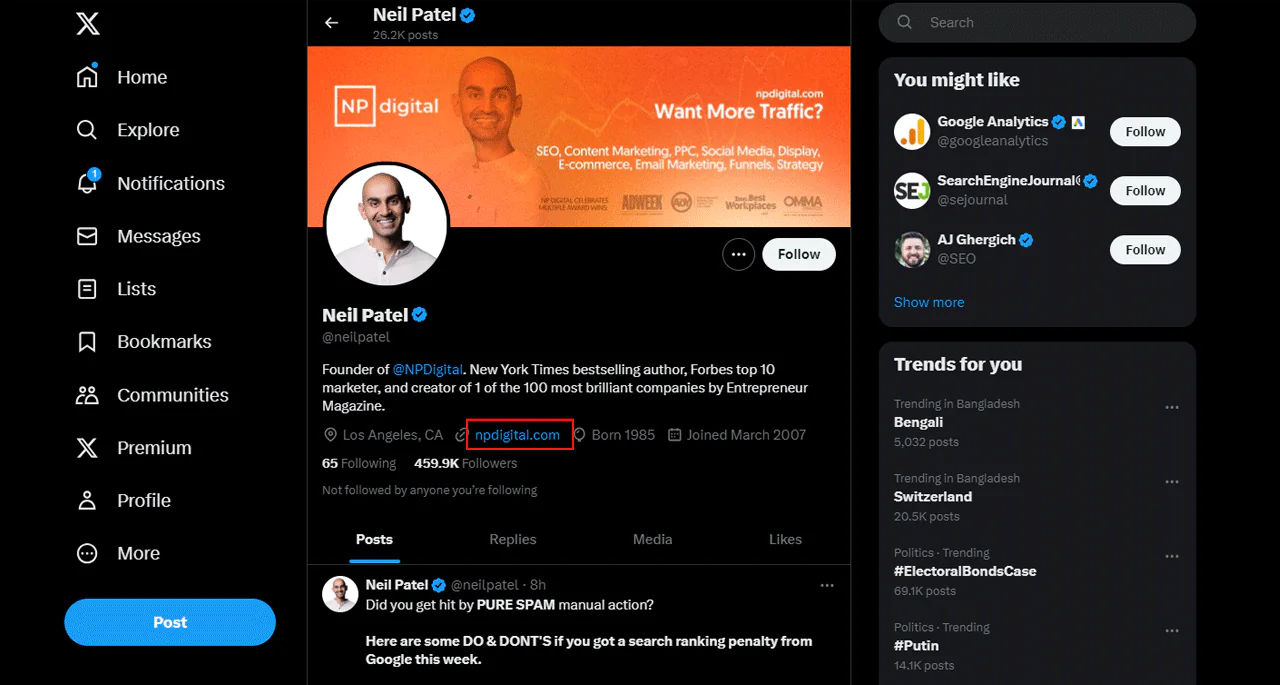
A bio link sometimes leads to a contact page or form.
- Advanced Search:
If finding the email address in the bio doesn’t work, try Twitter’s Advanced Search with keywords like “email address” plus the handle. Sometimes a past tweet reveals it.
Instagram is a visual-first platform, so users don’t always list an email addresses in their Instagram profiles, and private accounts add another barrier. Still, a few paths exist:
- Bio Section
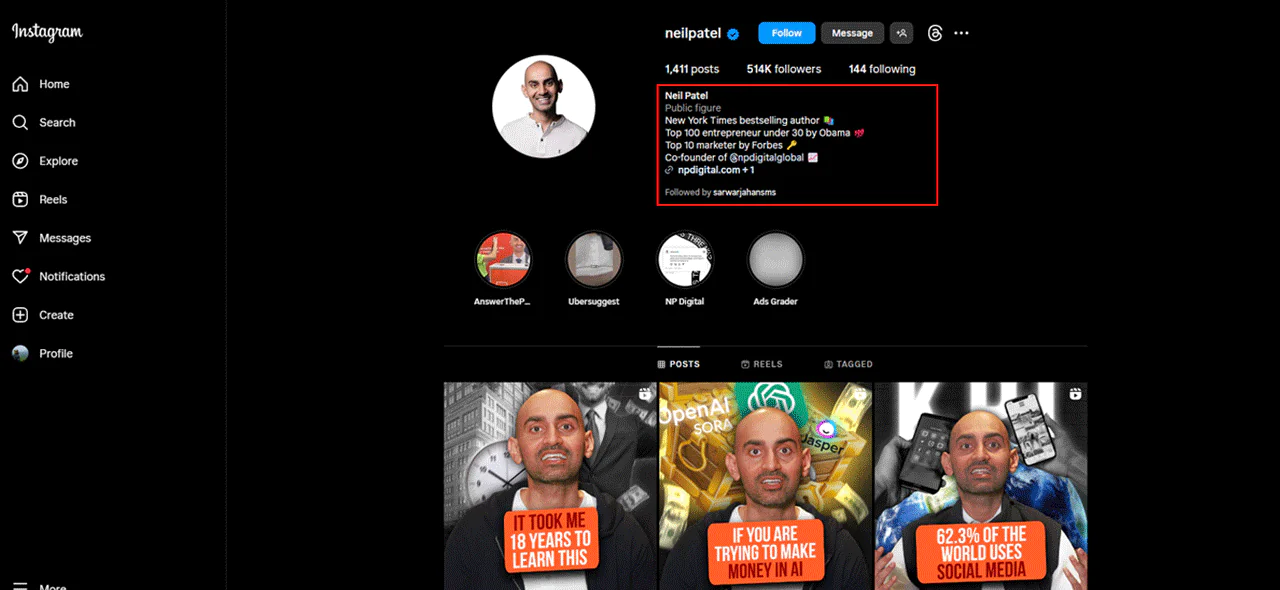
Look for a line like “For business inquiries, contact me at…”
- Website Link
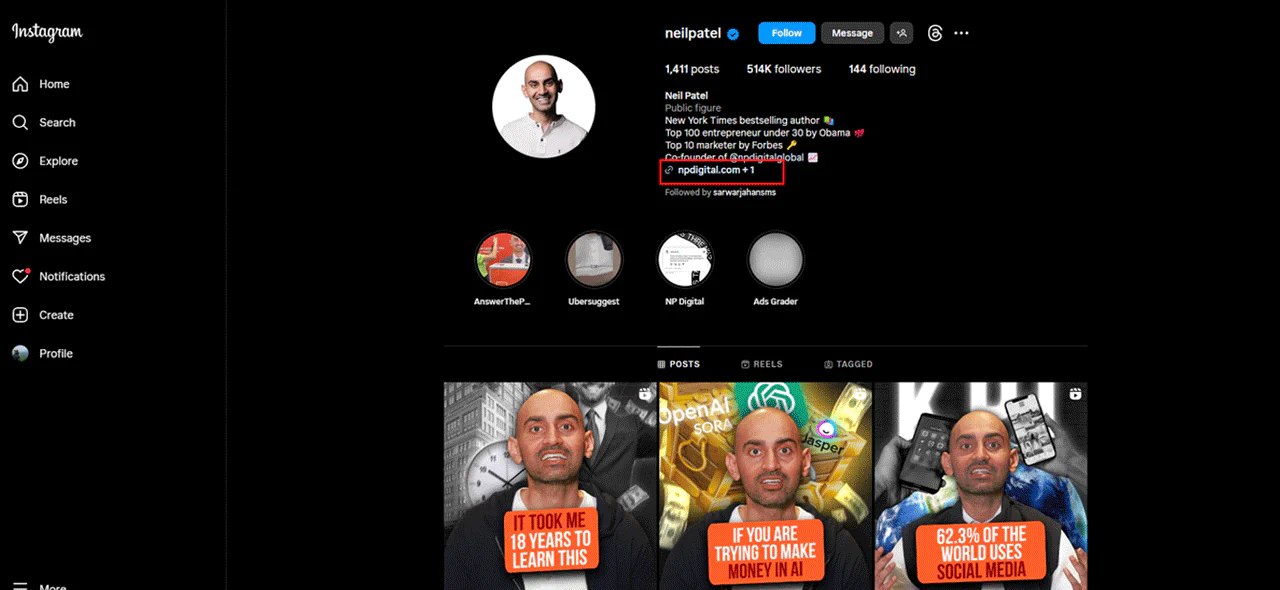
Check for a link in the bio that leads to a contact page.
- Direct Message
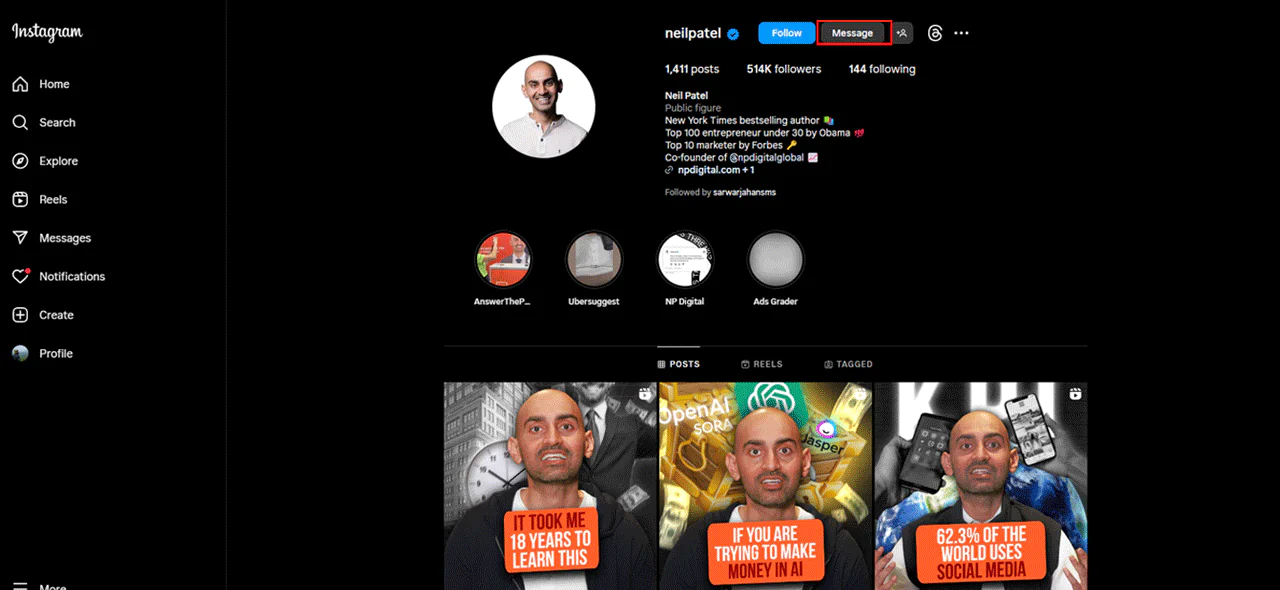
Send a respectful direct message explaining your reason for reaching out.
5. Utilize an Email Permutator
An email permutator generates possible address combinations from a name and domain pattern. It can help identify likely formats, but the results are guesses until you verify them.
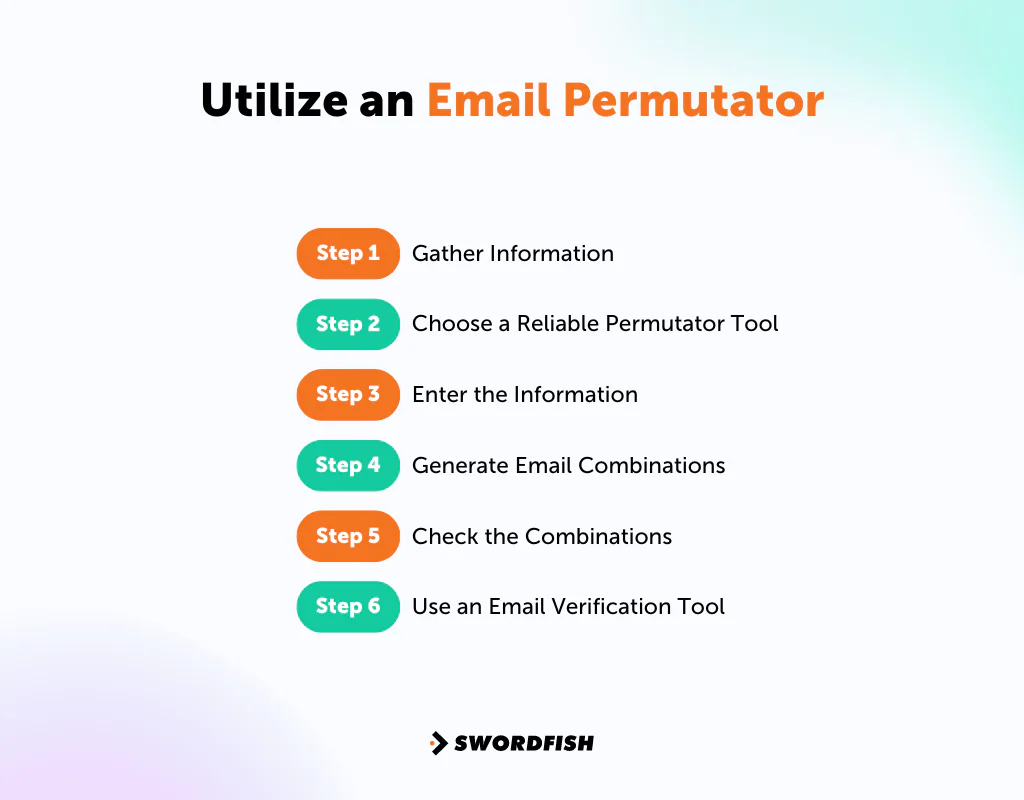
Step 1: Gather Information
Collect the person’s full name, the company domain, and any known email patterns used at that organization.
Step 2: Choose a Reliable Permutator Tool
Several tools exist for this, including Email Permutator and Swordfish AI’s Email Finder.
Step 3: Enter the Information
Fill in first name, last name, and domain accurately.
Step 4: Generate Email Combinations
Run the tool to generate a list of likely addresses.
Step 5: Check the Combinations
Look for the pattern most likely to match the organization’s actual convention.
Step 6: Use an Email Verification Tool
Before sending anything, verify the address with a tool like Swordfish AI’s Email Verifier to confirm it’s active rather than just plausible.
6. Conduct a Domain Whois Search
A Whois search can show domain registration details and, in some cases, contact information for the registrant.
Step 1: Access a Domain Whois Lookup Service
Use a free service such as WHOIS.net, ICANN WHOIS, or DomainTools.
Step 2: Enter the Domain
Type the domain, such as “example.com,” into the search bar.
Step 3: Review the Results
Results may include the owner’s name, email, phone number, and sometimes a physical address.
Step 4: Analyze the Contact Information
Many domain owners now use privacy protection services that mask this detail entirely, so don’t expect a hit every time.
Step 5: Reach Out Respectfully
If you find an email, use it professionally and explain clearly why you’re reaching out.
7. Subscribe to Their Mailing List
Subscribing to someone’s newsletter is a low-pressure way to eventually get a reply-to address:
- Go to Their Website: Start at their site or blog.
- Find the Subscription Area: Look for “Subscribe” or “Join Our Newsletter.”
- Enter Your Email: Use your own address for the signup.
- Complete the Sign-Up: Submit the form.
- Check for a Confirmation Email: The reply-to address on the confirmation sometimes leads back to a real contact.
This approach signals genuine interest in their work, which tends to make a follow-up message land better than a cold ask.
8. Utilize Their Website’s Contact Form
If the person or organization provides a contact form, it lets you send a message without searching for a direct email address:
- Locate the Contact Page: Usually in the site menu or footer, labeled “Contact” or similar.
- Fill Out the Contact Form: Provide your name, email, subject, and message.
- Write a Clear Message: Keep it brief and state your purpose plainly.
- Double-Check Your Information: Confirm your own contact details are correct before sending.
- Send Your Message: Submit once everything checks out.
9. Using Personal Connections
Your own network is often faster than any search technique:
- Identify Mutual Connections: Think through colleagues or friends who might know the person.
- Reach Out Thoughtfully: Explain why you’re trying to connect and why you think they can help.
- Be Respectful: Frame it as a request, not an obligation.
- Consider an Introduction: A direct introduction usually works better than just handing over an email address.
10. Check Out DuckDuckGo with “@domainname.com”
A DuckDuckGo search for a domain pattern such as "@example.com" may surface public pages that mention addresses from that domain.
Step 1: Open DuckDuckGo
Go to the homepage.
Step 2: Craft Your Query
Search “@example.com” for the domain in question.
Step 3: Analyze the Search Results
Results may surface press releases, contact pages, or public documents mentioning that domain.
Step 4: Refine Your Search (Optional)
Add role or department keywords, like “@example.com marketing,” to narrow results.
Step 5: Verify the Email Addresses
Confirm validity with a verification tool before sending anything.
11. Export Your LinkedIn Connections
This is a consent-based way to collect email addresses from your professional network:
Step 1: Access LinkedIn Settings
Click your profile picture, then “Settings & Privacy.”
Step 2: Locate the Right Section
Go to the “Privacy” tab.
Step 3: Find the Data Export Option
Scroll to “How LinkedIn uses your data” and find “Get a copy of your data.”
Step 4: Select Your Data Type
Choose “Connections” specifically.
Step 5: Request Your Archive
Confirm with your password to start the export.
Step 6: Download Your Data
LinkedIn emails you a download link once the archive is ready.
Step 7: Extract and Explore Your Connections
Open the exported file in a spreadsheet to review names and available contact details.
12. Take an Educated Guess
If you know the person’s name and employer’s email domain, you can try common address formats—but treat each result as a guess until verified:
Step 1: Collect Basic Information
You need the full name and the company’s email domain.
Step 2: Understand Common Email Formats
Most organizations use one of a few patterns:
[first name]@[company].com
[first name].[last name]@[company].com
[first initial][last name]@[company].com
[first name][last initial]@[company].com
Step 3: Create a List of Potential Email Addresses
For John Doe at Example Company, that might be jdoe@example.com or john.doe@example.com.
Step 4: Verify Your Guesses
Use a tool like Swordfish AI Email Verifier to confirm validity before sending anything.
Step 5: Start with the Most Likely Formats
Check the company’s public email addresses first to identify their actual convention.
Step 6: Send a Test Email
Keep the first message brief and explain why you’re reaching out.
13. Google Name + “Email” / Google Name + Place of Work
A simple search for a person’s name plus "email" or their employer may turn up public contact information.
Step 1: Open Google
Start at Google’s homepage.
Step 2: Enter Your Search Query
Try the full name plus “email” or plus their employer, like “John Doe email” or “Jane Smith Example Corporation.”
Step 3: Review the Search Results
Check personal sites, company pages, press releases, and public records.
Step 4: Refine Your Search (Optional)
Add job title or industry, like “John Doe marketing director email.”
Step 5: Utilize Google’s Advanced Search Features
Quotes force exact matches; a site-specific search like site:example.com “John Doe” can surface pages on a particular domain.
Step 6: Verify the Email Address
Run any address you find through a verification tool before using it.
14. Master Google’s Site Search Operator
Google’s site: operator limits results to a specified domain, which can help you search company sites, blogs, or directories.
Step 1: Open Google
Start at Google’s homepage.
Step 2: Craft Your Search Query
Type “site:” followed by the domain, then a space and your search term, like site:examplecompany.com John Doe or site:examplecompany.com email.
Step 3: Analyze the Results
Look for contact directories, about pages, or team bios.
Step 4: Refine Your Search as Needed
Add a title or department, like site:examplecompany.com “John Doe” marketing.
Step 5: Use Variations of Your Search Query
Try site:examplecompany.com “contact” or site:examplecompany.com “@examplecompany.com” for different angles.
Step 6: Verify Any Found Email Addresses
Confirm the address is active before using it.
15. Try “Kitchen Sink” Queries
When the standard tricks don’t work, throw everything you have at the problem:
Step 1: Collect All Info You Have
Full name, employer, role, location, and any group affiliations.
Step 2: Mix Up Your Search Queries
Combine these details with terms like “email,” “contact,” or “profile” in different orders.
Step 3: Use Advanced Search Tricks
Quotes for exact matches, OR for alternatives (“John Doe” OR “J. Doe”), and a minus sign to exclude sources like -site:linkedin.com.
Step 4: Dig Deeper in Search Results
Check past the first page; relevant results often rank lower.
Step 5: Look in Different Places
Try Bing or DuckDuckGo, plus forums and industry news sites Google might deprioritize.
Step 6: Make Sure the Emails Work
Verify before sending, to avoid a wasted message.
16. Explore Personal Blogs
Bloggers often want to be reached, which makes personal sites a decent source:
- Identify the Blog: Check social profiles or search their name plus “blog” or “website.”
- Visit the Blog: Look for “About Me,” “Contact,” or “Get in Touch.”
- Check the About Page: Often includes contact detail alongside their story.
- Check the Contact Page: May list a direct email or a form.
- Scan Footer and Header: Contact links sometimes sit outside the main content area.
- Utilize the Search Function: Try “contact,” “email,” or “reach me” if the blog has a search bar.
- Verify the Email Address: Confirm it’s active before sending.
Conclusion
To find an email address by name, try a lookup tool, search engines, public social profiles, a website contact form, or a mutual connection. If you generate or infer an address, verify it before relying on it.
A dedicated lookup tool may be faster than piecing together clues from search results. Swordfish AI’s Reverse Search and verification features are presented here as ways to reduce guesswork.
Whatever method you use, respect the person’s privacy preferences and use contact information appropriately.
FAQs
Is it legal to use an email permutator to find email addresses?
Yes. Generating potential addresses from known patterns is legal. What matters is how you use the information afterward, so follow applicable data privacy laws.
Are there any privacy concerns when using an email verification tool like Swordfish?
Email verification tools like Swordfish AI are built around privacy and compliance requirements, including not retaining or misusing personal data without permission.
Can I use the information obtained through these methods for marketing purposes?
Get clear consent before sending marketing material to any address you’ve gathered. Emailing without consent can violate anti-spam laws and damage your reputation.
What if the person I’m trying to contact has intentionally kept their contact information private?
Respect that choice. Trying to work around someone’s privacy settings is disrespectful and often backfires.