
 View Products


Key takeaways
- LinkedIn provides a native CSV export for connections; other lead lists may require a controlled internal CSV.
- Standardize identity fields such as name, LinkedIn URL, and email before deduping or enriching records.
- Deduplicate before enrichment, using LinkedIn URL or email when available.
- Check enriched rows and field mappings before importing a small test batch into your CRM.
- Keep the original export unchanged and retain source information for auditability and reporting.
Last updated: September 3, 2026
By Ben Argeband, Founder & CEO of Swordfish.AI
A LinkedIn export isn’t just a file download — treat it like a pipeline with checkpoints for identity, dedupe, enrichment, and CRM readiness, and you’ll avoid the cleanup work that usually follows a rushed import.
Who this is for
RevOps teams, recruiting ops, and healthcare-focused sales teams exporting LinkedIn contacts or leads and preparing files for csv enrichment and crm import. If you own data hygiene, dedupe, contact enrichment, CRM import, and field mapping, this workflow applies to you.
Quick Answer
- Core Answer
- Use LinkedIn’s connections export to download a CSV, standardize name/company/LinkedIn URL columns, dedupe rows, then enrich and verify before CRM import.
- Key Stat
- CSV workflows succeed when identity fields are clean; enrichment and dedupe break down when names, companies, and URLs aren’t consistent row to row.
- Best For
- RevOps managers and recruiting ops teams running contact enrichment and CRM imports.
LinkedIn provides a native export for connections. For other lead lists, including lists built with Sales Navigator, you may need to create a controlled internal CSV from your source list rather than rely on a one-click export.
Compliance & Safety
This method is for legitimate business outreach only. Always respect Do Not Call (DNC) registries and opt-out requests.
Framework: The “Clean CSV” Standard: Identity → Context → Enrich → Verify
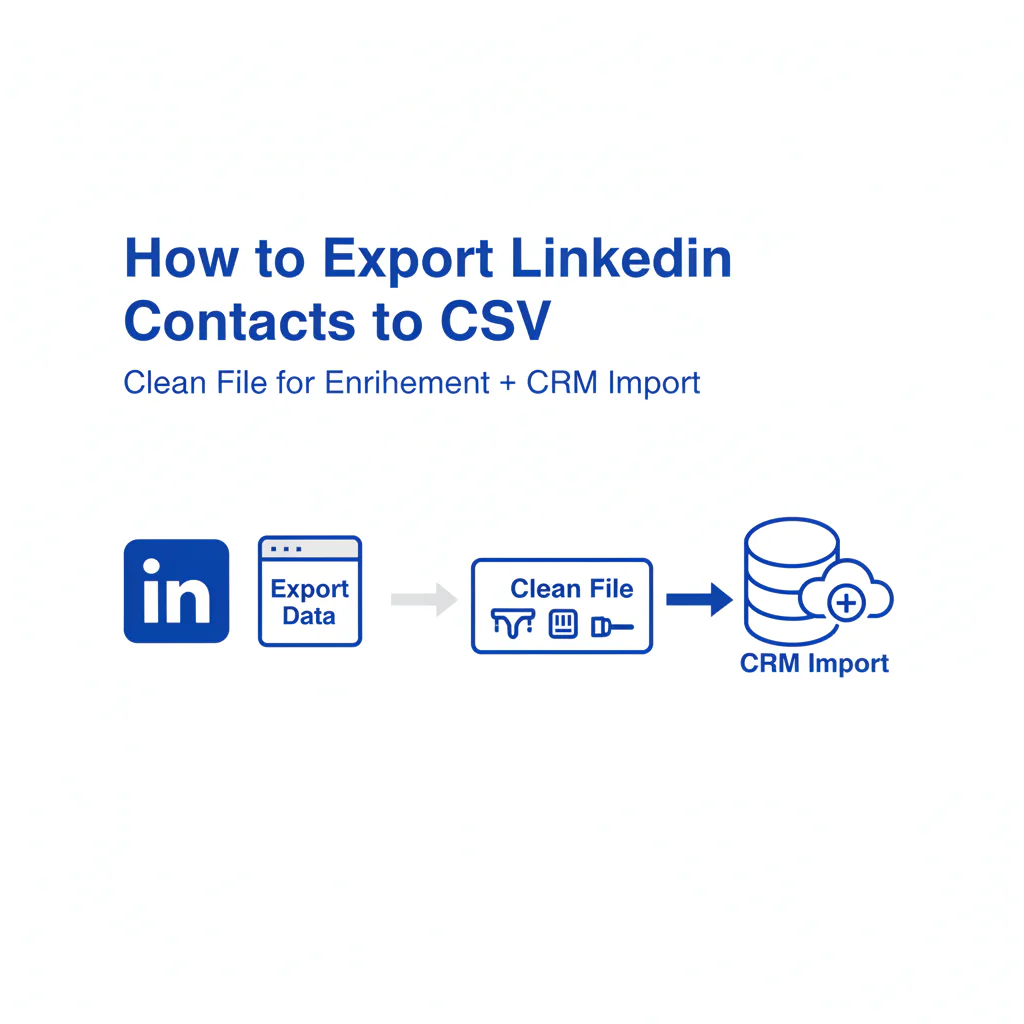
Treat a CSV export as a pipeline, not just a file transfer. Checking identity fields, duplicates, and enrichment matches before import can reduce rework and help prevent mismatched records from reaching your CRM.
Identity is what lets you match a row to a real person and avoid duplicates. Context is what makes the record usable in routing and segmentation. Enrich is where you append missing fields to the same rows. Verify is where you sanity-check match quality before you import.
The trade-off is speed versus reliability: importing quickly may mean more cleanup later, while standardizing the file first can help reduce downstream problems.
Decision Heuristic
If this CSV created 500 new CRM records tomorrow, would you trust it not to create duplicates or attach the wrong enrichment to the wrong person?
Step-by-step method
- Decide what you’re exporting and why.
- If you need your 1st-degree network, use LinkedIn’s native CSV export for connections.
- If you need a targeted prospect list, you’re usually working from a curated linkedin prospect list or a list built through Sales Navigator.
- Export your LinkedIn connections to CSV.
LinkedIn provides a native connections export as a CSV download. In LinkedIn, use the Settings & Privacy menu to request your data export, then download the Connections CSV. A common path is Settings & Privacy → Data privacy → Get a copy of your data → Connections (CSV), though labels can shift with UI updates.
What you actually get in the export can vary by account, so plan to normalize and fill gaps before running enrichment or a CRM import.
- Immediately standardize the “Identity” columns.
Your goal is one row equals one person, with stable identifiers. Use this header order for a working file so enrichment and CRM import mapping stay consistent:
first_name,last_name,linkedin_url,email,company,title,location,source
Create or normalize these columns even if some are blank:
- first_name, last_name (split full names; don’t rely on a single “name” field)
- linkedin_url (preferred over a display name for matching)
- email (if present)
- company (current company as plain text)
- title (current title)
- location (optional, but helps disambiguate)
- source (for example, “LinkedIn connections export,” “Sales Navigator lead list,” or “manual list”)
If company or title are missing, leave them blank for now and fill them during enrichment or manual review. Consistent columns matter more than complete ones at this stage.
- Normalize formatting and remove obvious non-target rows.
- Trim whitespace and collapse double spaces.
- Standardize capitalization so reporting doesn’t split values.
- Remove rows you shouldn’t contact, such as personal contacts, irrelevant vendors, or internal test records.
- Dedupe before enrichment.
Enrichment is only as good as your matching keys. Dedupe first so you don’t pay to enrich the same person twice.
- Primary dedupe key: linkedin_url.
- Fallback dedupe key: email.
- Last resort: first_name + last_name + company (higher collision risk).
Example (collision): Two rows for “Alex Kim” at different companies will merge incorrectly if you dedupe on name alone. Add company and linkedin_url before merging anything.
- Enrich the CSV with mobile numbers and other missing fields.
Use a contact enrichment workflow that appends results to the same rows rather than producing a separate file you have to reconcile later. Use Swordfish File Upload to enrich the exported CSV with mobile numbers.
Once you have your LinkedIn CSV, drop it here to add mobile numbers automatically.
This step requires manual verification, especially when the company name is ambiguous or the LinkedIn URL is missing. For healthcare-focused outreach, verifying that a matched mobile number belongs to the correct provider or practice contact matters more than usual, given how often names repeat across large health systems.
- Verify and QA the enriched output before crm import.
- Spot-check a sample, say 25 random rows, against LinkedIn profiles to confirm the match is correct. This requires manual verification.
- Check for shifted columns; CSV quoting issues can move values into the wrong fields.
- In spreadsheets, set phone and ID-like columns to text to avoid auto-formatting, such as dropped leading zeros or scientific notation.
- Confirm delimiter and encoding didn’t change when opening or saving in Excel or Sheets.
Example (column drift): A company name containing a comma can shift columns if the CSV isn’t properly quoted. That’s how “title” ends up in “company,” and your CRM import becomes cleanup work.
- Map fields for CRM import and run a small test import.
Do a test import of 20 to 50 rows into a sandbox or test list. Confirm:
- Field mapping lands in the right CRM properties.
- Duplicates are handled the way you expect, whether merged or created new.
- Source attribution is preserved for reporting.
Example (field mapping): Map linkedin_url to a dedicated CRM field, often called “LinkedIn Profile URL,” and map source to your lead or contact source property so you can attribute pipeline back to the export sales navigator leads list or connections export. For recruiting ops, map linkedin_url to an ATS “Profile URL” field and map source to your campaign or source field.
Checklist: Weighted Checklist
- Highest impact: Clean identity fields before anything else. CSV workflows succeed with clean identity fields; without them, dedupe and contact enrichment misfire.
- High impact: Keep columns consistent for enrichment. If headers change, your enrichment append and CRM import field mapping break or silently mis-map.
- High impact: Dedupe before enrichment. This prevents double-enrichment and duplicate CRM records and reduces downstream cleanup.
- Medium impact: Add context fields (title, company, location, source). This improves routing and segmentation and reduces “who is this?” confusion in CRM.
- Medium impact: QA a sample after enrichment. This catches row-matching errors early and avoids importing bad data at scale.
- Lower impact: Standardize formatting. It helps reporting and matching but doesn’t fix missing identifiers.
Diagnostic: Why this fails
Many problems are not with the LinkedIn export itself, but with the steps that follow: weak identifiers, inconsistent columns, and rushed imports can create duplicates that take time to resolve.
- Identity mismatch: a common name gets enriched and imported as the wrong person.
- Column drift: headers or column order change between exports, and enrichment or CRM mapping lands in the wrong fields.
- Duplicate creation: you import without stable keys, and your CRM ends up with multiple records per person.
- Bad source attribution: you lose track of where a record came from, so you can’t measure which linkedin leads csv or list actually produced pipeline.
Decision Tree: Conditional Decision Tree
- If your CSV has a stable unique identifier (linkedin_url or email) for most rows, then proceed to dedupe using that key.
- If you don’t have linkedin_url or email for a meaningful portion of rows, then add or derive linkedin_url from your source list before enrichment.
- If you changed headers or column order since the last export, then revert to your standard column set before running csv enrichment.
- If dedupe produces collisions (same name or company but different people), then add context, such as title or location, and re-dedupe.
- If you’re trying to export sales navigator leads but can’t get a clean native CSV, then build a controlled internal CSV using linkedin_url as the key and keep the same headers for downstream enrichment and crm import csv.
- If enrichment appends fields but you can’t confidently match rows to people, then STOP CONDITION: do not run crm import; fix identity fields and rerun enrichment.
How to improve results
A usable file depends less on adding more data than on keeping rows accurate and consistently formatted.
- Standardize a single “golden” CSV template. Use the same headers every time so enrichment and CRM mapping stay repeatable.
- Prefer linkedin_url as your primary key. Names aren’t unique, company names change, and URLs are more stable for matching.
- Separate “raw export” from “working file.” Keep the original export untouched and make transformations in a copy so you can audit changes.
- Run enrichment only after dedupe. This keeps your contact enrichment workflow efficient and reduces duplicate records.
- Plan the CRM import mapping before you enrich. Decide which fields you actually need in CRM so you don’t bloat records with unused properties.
If you export LinkedIn contacts regularly, using the same CSV template can reduce rework by keeping enrichment and CRM import steps consistent, even when the export format changes.
If source isn’t mapped at import, you can’t attribute pipeline or hiring outcomes back to the list that produced it.
For a deeper walkthrough on enrichment from a spreadsheet, see csv contact enrichment.
Troubleshooting Table: Diagnostic Table
| Symptom | Root Cause | Fix |
|---|---|---|
| Enrichment returns results, but they don’t match the right person | Weak identity fields (only name; missing linkedin_url/company) | Add linkedin_url and company; re-run dedupe; then re-run contact enrichment |
| CRM import creates duplicates | No stable dedupe key mapped (email/URL not used) | Map linkedin_url or email to a unique field; configure CRM duplicate rules; test import a small batch |
| Fields land in the wrong CRM properties | Column drift or inconsistent headers | Revert to your standard headers; reformat the working file; re-run import mapping |
| Sales team says the list is “not usable” | Missing context (title/company/source) and poor data hygiene | Add context columns; enforce required fields before import; keep source attribution |
| Reporting can’t attribute pipeline to LinkedIn | Source field not captured at import | Add source column; map to CRM source properties; lock the mapping |
Legal and ethical use
Exporting contact data and using it for outreach may trigger privacy and communications rules. Requirements depend on the jurisdiction, channel, and purpose.
- Consent and legitimate interest vary by region. Don’t assume one standard applies everywhere.
- Honor opt-outs immediately. Keep suppression lists and propagate them across tools.
- Respect DNC rules for calling. If you call, you need process controls, not just a list.
- Not for sensitive decisions. Don’t use enriched contact data to make decisions about credit, housing, employment eligibility, or other sensitive determinations.
Manually verify records when the outreach channel is regulated or when the contact’s business context is unclear.
Evidence and trust notes
- Identifier quality drives match quality. A row with linkedin_url plus company plus title matches more reliably than a row with only a name.
- Company ambiguity creates collisions. Similar company strings and subsidiaries can cause mis-merges during dedupe.
- Role churn is normal. Your CSV is a snapshot that’s often already stale by the time someone changes jobs.
- CSV formatting errors are common. Quoting and commas can shift columns and silently break field mapping.
- Verification has limits. A signal validation or real-time connectivity check can reduce obvious bad outputs, but it doesn’t guarantee the person will respond or that a channel is appropriate.
Sources
- GDPR (General Data Protection Regulation) overview
- FTC Telemarketing Sales Rule (TSR)
- FCC guidance on telemarketing/robocalls (TCPA context)
Limitations and edge cases
- Connections export is the supported native CSV export. Other list types may require a controlled internal process to build a clean file.
- LinkedIn search results aren’t a supported CSV export. Don’t build processes that depend on scraping.
- Sales Navigator exports can be constrained. If you can’t export directly, build a working CSV from your lead list with linkedin_url as the key and keep the same headers for enrichment.
- Common names create collisions. Without linkedin_url or email, you’ll mis-merge people during dedupe.
- International records vary. Phone formats, consent expectations, and outreach norms differ; don’t assume one workflow fits all.
- Enrichment isn’t consent. Having a number doesn’t mean you should call it; your compliance process decides that.
FAQs
What columns should I keep in a LinkedIn CSV if I plan to enrich it?
Keep stable identity fields first: first_name, last_name, linkedin_url (preferred), company, title, and email if present. Keep columns consistent for enrichment and CRM import.
Should I dedupe before or after csv enrichment?
Before. Dedupe contacts first so you don’t enrich duplicates and then import multiple records into your CRM.
Why does my crm import create duplicates even when names match?
Names aren’t unique. Use linkedin_url or email as a dedupe key, and map it consistently during CRM import.
How do I enrich a LinkedIn export with mobile numbers?
Export the CSV, standardize identity fields, then run enrichment that appends results to the same rows. Use Swordfish File Upload to enrich the exported CSV with mobile numbers.
What’s the fastest way to avoid bad data hygiene from LinkedIn lists?
Adopt a single “golden” CSV template, enforce required identity fields, and run a small test import before you load the full file.
Next steps
Day 1
- Export the connections CSV and convert it into your standard header order.
- Dedupe using linkedin_url or email.
- Once you have your LinkedIn CSV, drop it here to add mobile numbers automatically.
Day 3
- QA a sample against LinkedIn profiles; fix identity fields and rerun enrichment if needed.
- Finalize field mapping and run a 20–50 row test CRM import.
- If you’re enriching from spreadsheets end-to-end, use csv contact enrichment.
Day 7
- Import the full file with duplicate rules enabled and source attribution mapped.
- If you’re pushing enriched contacts into your CRM, align your process with salesforce contact enrichment or hubspot contact enrichment.
- If your workflow starts with finding direct dials from LinkedIn profiles (separate from CSV export), see linkedin phone number finder.
About the Author
Ben Argeband is the Founder and CEO of Swordfish.ai and Heartbeat.ai. With deep expertise in data and SaaS, he has built two successful platforms trusted by over 50,000 sales and recruitment professionals. Ben’s mission is to help teams find direct contact information for hard-to-reach professionals and decision-makers, providing the shortest route to their next win. Connect with Ben on LinkedIn.