
 View Products


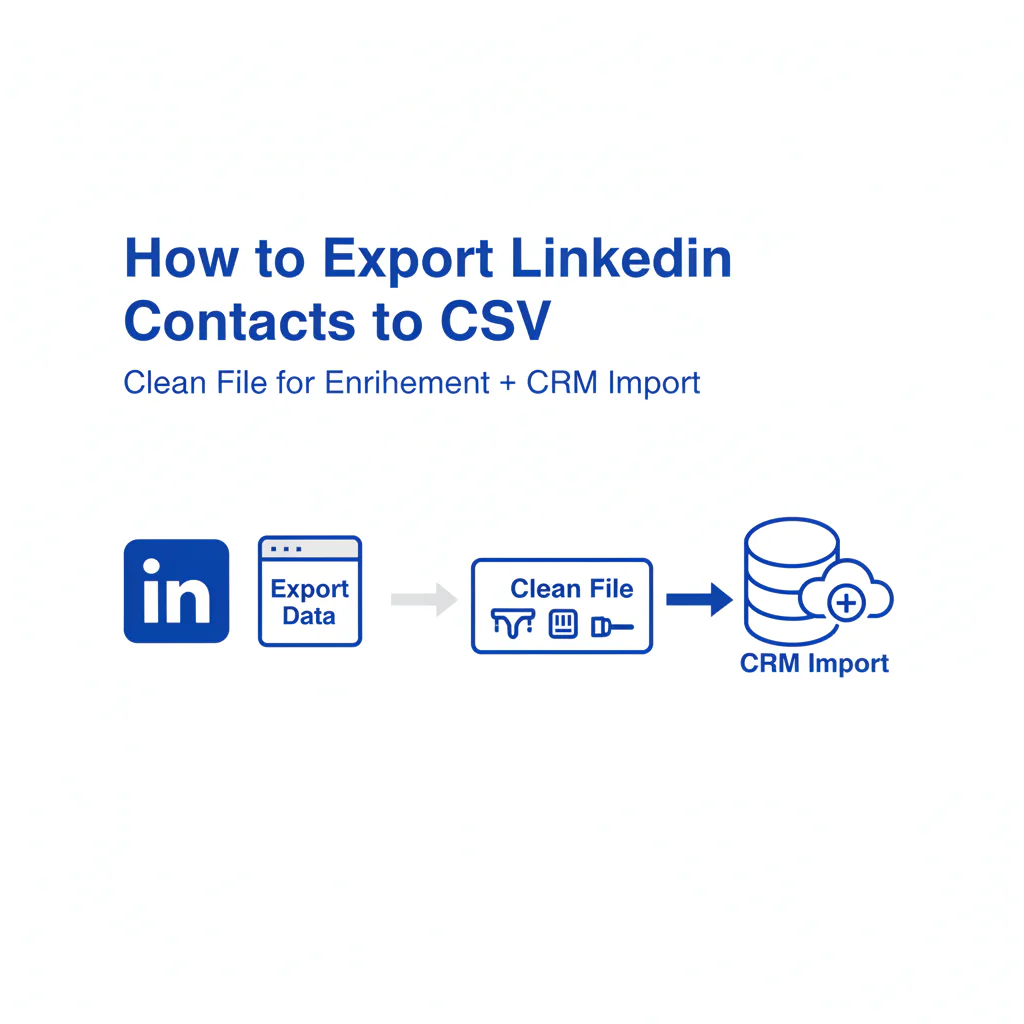
How to Export LinkedIn Contacts to CSV (Clean File for Enrichment + CRM Import)
By Ben Argeband, Founder & CEO of Swordfish.AI
Treat CSV as a pipeline: stress clean identity fields, consistent columns, and CRM import readiness; include pitfalls that break enrichment.
Who this is for
RevOps and recruiting ops exporting LinkedIn contacts/leads and preparing files for csv enrichment and crm import. If you own data hygiene, dedupe, contact enrichment, CRM import, and field mapping, this is the workflow.
Quick Answer
- Core Answer
- Use LinkedIn’s connections export to download a CSV, standardize name/company/LinkedIn URL columns, dedupe rows, then enrich and verify before CRM import.
- Key Stat
- CSV workflows succeed with clean identity fields; enrichment and dedupe break when names, companies, and URLs aren’t consistent across rows.
- Best For
- RevOps managers and recruiting ops teams running contact enrichment and CRM imports.
LinkedIn natively exports connections; other lead lists may require a controlled internal CSV built from your source list.
Compliance & Safety
This method is for legitimate business outreach only. Always respect Do Not Call (DNC) registries and opt-out requests.
Framework: The “Clean CSV” Standard: Identity → Context → Enrich → Verify
Most teams treat a CSV export like a file transfer. Operators treat it like a pipeline with failure points. This revops workflow reduces rework by preventing duplicates and mis-matched enrichment before anything hits the CRM.
Identity is what lets you match a row to a real person and avoid duplicates. Context is what makes the record usable in routing and segmentation. Enrich is where you append missing fields to the same rows. Verify is where you sanity-check match quality before you import.
The trade-off is speed vs. reliability: you can import fast and clean up later, or standardize now and avoid downstream cleanup.
Decision Heuristic
If this CSV created 500 new CRM records tomorrow, would you trust it not to create duplicates or attach the wrong enrichment to the wrong person?
Step-by-step method
-
Decide what you’re exporting and why.
- If you need your 1st-degree network, use LinkedIn’s native CSV export for connections.
- If you need a targeted prospect list, you’re usually working from a curated linkedin prospect list or a list you built from Sales Navigator.
-
Export your LinkedIn connections to CSV.
LinkedIn provides a native connections export (a CSV download). In LinkedIn, use the Settings & Privacy menu to request/download from LinkedIn’s data export your Connections data export (CSV). A common path is Settings & Privacy → Data privacy → Get a copy of your data → Connections (CSV); labels can vary by account and UI updates.
What you get in the export can vary by account and what data is available, so plan to normalize and fill gaps before you run enrichment or crm import.
-
Immediately standardize the “Identity” columns.
Your goal is one row = one person, with stable identifiers. Use this header order for a working file so enrichment and CRM import mapping stay consistent:
first_name,last_name,linkedin_url,email,company,title,location,source
Create/normalize these columns (even if some are blank):
- first_name, last_name (split full names; don’t rely on a single “name” field)
- linkedin_url (preferred over a display name for matching)
- email (if present)
- company (current company as plain text)
- title (current title)
- location (optional, but helps disambiguate)
- source (e.g., “LinkedIn connections export”, “Sales Navigator lead list”, “manual list”)
If company or title are missing, leave them blank now and fill them during enrichment or manual review. Keep columns consistent for enrichment.
-
Normalize formatting and remove obvious non-target rows.
- Trim whitespace and remove double spaces.
- Standardize capitalization so reporting doesn’t split values.
- Remove rows you should not contact (personal contacts, irrelevant vendors, internal test records).
-
Dedupe before enrichment.
Enrichment is only as good as your matching keys. Dedupe first so you don’t enrich the same person multiple times.
- Primary dedupe key: linkedin_url.
- Fallback dedupe key: email.
- Last resort: first_name + last_name + company (higher collision risk).
Example (collision): Two rows for “Alex Kim” at different companies will merge incorrectly if you dedupe on name alone. Add company and linkedin_url before you merge anything.
-
Enrich the CSV (mobile numbers and other missing fields).
Use a contact enrichment workflow that appends results to the same rows, not a separate file you have to reconcile later. Use Swordfish File Upload to enrich the exported CSV with mobile numbers.
Once you have your LinkedIn CSV, drop it here to add mobile numbers automatically.
This requires manual verification, especially when the company name is ambiguous or the LinkedIn URL is missing.
-
Verify and QA the enriched output before crm import.
- Spot-check a sample (for example, 25 random rows) against LinkedIn profiles to confirm the match is correct. This requires manual verification.
- Check for shifted columns (CSV quoting issues can move values into the wrong fields).
- In spreadsheets, set phone and ID-like columns to text to avoid auto-formatting (leading zeros dropped, scientific notation).
- Confirm delimiter and encoding didn’t change when opening/saving in Excel or Sheets.
Example (column drift): A company name containing a comma can shift columns if the CSV isn’t properly quoted. That’s how “title” ends up in “company” and your CRM import becomes cleanup work.
-
Map fields for CRM import and run a small test import.
Do a test import of 20–50 rows into a sandbox or a test list. Confirm:
- Field mapping lands in the right CRM properties.
- Duplicates are handled the way you expect (merge vs. create new).
- Source attribution is preserved for reporting.
Example (field mapping): Map linkedin_url to a dedicated CRM field (often “LinkedIn Profile URL”) and map source to your lead/contact source property so you can attribute pipeline back to the export sales navigator leads list or connections export. For recruiting ops, map linkedin_url to an ATS “Profile URL” field and map source to your campaign/source field.
Checklist: Weighted Checklist
- Highest impact: Clean identity fields before anything else. CSV workflows succeed with clean identity fields; without them, dedupe and contact enrichment misfire.
- High impact: Keep columns consistent for enrichment. If headers change, your enrichment append and CRM import field mapping break or silently mis-map.
- High impact: Dedupe before enrichment. Prevents double-enrichment and duplicate CRM records; reduces downstream cleanup.
- Medium impact: Add context fields (title, company, location, source). Improves routing and segmentation and reduces “who is this?” confusion in CRM.
- Medium impact: QA a sample after enrichment. Catches row-matching errors early; avoids importing bad data at scale.
- Lower impact: Standardize formatting. Helps reporting and matching, but doesn’t fix missing identifiers.
Diagnostic: Why this fails
Most failures aren’t “LinkedIn export problems.” They’re pipeline problems: weak identifiers, inconsistent columns, and rushed imports that create duplicates you can’t unwind.
- Identity mismatch: a common name gets enriched and imported as the wrong person.
- Column drift: headers or column order change between exports, and enrichment/CRM mapping lands in the wrong fields.
- Duplicate creation: you import without stable keys, then your CRM has multiple records per person.
- Bad source attribution: you lose where the record came from, so you can’t measure which linkedin leads csv or list produced pipeline.
Decision Tree: Conditional Decision Tree
- If your CSV has a stable unique identifier (linkedin_url or email) for most rows, then proceed to dedupe using that key.
- If you do not have linkedin_url or email for a meaningful portion of rows, then add/derive linkedin_url from your source list before enrichment.
- If you changed headers or column order since the last export, then revert to your standard column set before running csv enrichment.
- If dedupe produces collisions (same name/company but different people), then add context (title, location) and re-dedupe.
- If you’re trying to export sales navigator leads but can’t get a clean native CSV, then build a controlled internal CSV using linkedin_url as the key and keep the same headers for downstream enrichment and crm import csv.
- If enrichment appends fields but you can’t confidently match rows to people, then STOP CONDITION: do not run crm import; fix identity fields and rerun enrichment.
How to improve results
Most teams don’t need more data. They need fewer broken rows.
- Standardize a single “golden” CSV template. Use the same headers every time so enrichment and CRM mapping are repeatable.
- Prefer linkedin_url as your primary key. Names are not unique; company names change; URLs are more stable for matching.
- Separate “raw export” from “working file.” Keep the original export untouched, and do transformations in a copy so you can audit changes.
- Run enrichment only after dedupe. This keeps your contact enrichment workflow efficient and reduces duplicate records.
- Plan the CRM import mapping before you enrich. Decide which fields you actually need in CRM so you don’t bloat records with unused properties.
If you’re doing export linkedin contacts weekly, this standardization reduces rework because your csv enrichment and crm import csv steps stop changing every time the file changes.
If source isn’t mapped at import, you can’t attribute pipeline or hiring outcomes back to the list that produced it.
For a deeper walkthrough on enrichment from a spreadsheet, see csv contact enrichment.
Troubleshooting Table: Diagnostic Table
| Symptom | Root Cause | Fix |
|---|---|---|
| Enrichment returns results, but they don’t match the right person | Weak identity fields (only name; missing linkedin_url/company) | Add linkedin_url and company; re-run dedupe; then re-run contact enrichment |
| CRM import creates duplicates | No stable dedupe key mapped (email/URL not used) | Map linkedin_url or email to a unique field; configure CRM duplicate rules; test import a small batch |
| Fields land in the wrong CRM properties | Column drift or inconsistent headers | Revert to your standard headers; reformat the working file; re-run import mapping |
| Sales team says the list is “not usable” | Missing context (title/company/source) and poor data hygiene | Add context columns; enforce required fields before import; keep source attribution |
| Reporting can’t attribute pipeline to LinkedIn | Source field not captured at import | Add source column; map to CRM source properties; lock the mapping |
Legal and ethical use
Exporting and using contact data for outreach can trigger privacy and communications rules depending on jurisdiction, channel, and purpose.
- Consent and legitimate interest vary by region. Don’t assume one standard applies everywhere.
- Honor opt-outs immediately. Keep suppression lists and propagate them across tools.
- Respect DNC rules for calling. If you call, you need process controls, not just a list.
- Not for sensitive decisions. Don’t use enriched contact data to make decisions about credit, housing, employment eligibility, or other sensitive determinations.
This requires manual verification when the outreach channel is regulated or when the record lacks clear business context.
Evidence and trust notes
- Identifier quality drives match quality. A row with linkedin_url + company + title matches more reliably than a row with only a name.
- Company ambiguity creates collisions. Similar company strings and subsidiaries can cause mis-merges during dedupe.
- Role churn is normal. Your CSV can be a snapshot that’s already stale if someone changed jobs.
- CSV formatting errors are common. Quoting and commas can shift columns and silently break field mapping.
- Verification has limits. A “Signal validation” or “Real-time connectivity check” can reduce obvious bad outputs, but it doesn’t guarantee the person will respond or that a channel is appropriate.
Sources
- GDPR (General Data Protection Regulation) overview
- FTC Telemarketing Sales Rule (TSR)
- FCC guidance on telemarketing/robocalls (TCPA context)
Limitations and edge cases
- Connections export is the supported native CSV export. Other list types may require a controlled internal process to build a clean file.
- LinkedIn search results aren’t a supported CSV export. Don’t build processes that depend on scraping.
- Sales Navigator exports can be constrained. If you can’t export directly, build a working CSV from your lead list with linkedin_url as the key and keep the same headers for enrichment.
- Common names create collisions. Without linkedin_url or email, you’ll mis-merge people during dedupe.
- International records vary. Phone formats, consent expectations, and outreach norms differ; don’t assume one workflow fits all.
- Enrichment isn’t consent. Having a number doesn’t mean you should call it; your compliance process decides that.
FAQs
What columns should I keep in a LinkedIn CSV if I plan to enrich it?
Keep stable identity fields first: first_name, last_name, linkedin_url (preferred), company, title, and email if present. Keep columns consistent for enrichment and CRM import.
Should I dedupe before or after csv enrichment?
Before. Dedupe contacts first so you don’t enrich duplicates and then import multiple records into your CRM.
Why does my crm import create duplicates even when names match?
Names aren’t unique. Use linkedin_url or email as a dedupe key, and map it consistently during CRM import.
How do I enrich a LinkedIn export with mobile numbers?
Export the CSV, standardize identity fields, then run enrichment that appends results to the same rows. Use Swordfish File Upload to enrich the exported CSV with mobile numbers.
What’s the fastest way to avoid bad data hygiene from LinkedIn lists?
Adopt a single “golden” CSV template, enforce required identity fields, and run a small test import before you load the full file.
Next steps
Day 1
- Export the connections CSV and convert it into your standard header order.
- Dedupe using linkedin_url or email.
- Once you have your LinkedIn CSV, drop it here to add mobile numbers automatically.
Day 3
- QA a sample against LinkedIn profiles; fix identity fields and rerun enrichment if needed.
- Finalize field mapping and run a 20–50 row test CRM import.
- If you’re enriching from spreadsheets end-to-end, use csv contact enrichment.
Day 7
- Import the full file with duplicate rules enabled and source attribution mapped.
- If you’re pushing enriched contacts into your CRM, align your process with salesforce contact enrichment or hubspot contact enrichment.
- If your workflow starts with finding direct dials from LinkedIn profiles (separate from CSV export), see linkedin phone number finder.
About the Author
Ben Argeband is the Founder and CEO of Swordfish.ai and Heartbeat.ai. With deep expertise in data and SaaS, he has built two successful platforms trusted by over 50,000 sales and recruitment professionals. Ben’s mission is to help teams find direct contact information for hard-to-reach professionals and decision-makers, providing the shortest route to their next win. Connect with Ben on LinkedIn.